02 November 2015
03 September 2015
Free up some GMail storage space
GMail is great and I have been an admirer of the free service since first signing up as an early adopter way back in 2007. I haven't touched Outlook since and have found the whole idea of messages and attachments available anywhere so much better than having them downloaded and access restricted to one or two devices.
Over all the years, though, the volume had built up and, whilst well short of the free 17GB storage Google provide I had noticed that GMail was taking up a good 9GB or so and decided to whittle that down a bit.
First step is to back up messages. That's easier said than done. I used Upsafe which is free and, eventually, seems to have stored them all somewhere on my hard drive should I really need to dig out something from the past. That took a while because there simply have been so many messages and the software seems to have taken several goes at it too. Despite declaring that it 'failed' I can see what appears to be all the messages stored and have read a few at random just to make sure. I have written to Upsafe to enquire what the failed message is all about but haven't heard from them yet. That may be another story. For now, though, I was happy that important messages were still available.
So on to the next stage. Let's delete some messages, tens of thousands of them to be more precise!
If you're happy to delete absolutely everything in a folder then there is a quick option. If you select all on the first page of a folder then Google will put up a message asking if you want to delete the lot. So it may be worthwhile using that - it will save a lot of time as some folders of mine had over 5000 messages. I wanted to keep the first few pages so didn't use that option but I could have made my life easier by changing the label (folder) for the first few pages and then doing the delete all thing for those that remained after moving those I wanted to keep.
That delete, though, isn't enough. they are still there and still counting towards your storage space. You have to delete them forever as Google dramatically puts it. To do that, go to the Bin (also called Trash confusingly) and select the whole lot (using the first page then all of them method described above) and hit Delete forever. It can take a while if there are a few thousand to be removed. That will make a difference, at last.
It didn't do as much as I had expected, though. The culprit may have been the Sent messages folder which had another 8000 messages, many conversations being those that had been deleted in their own folders but, confusingly, remaining, apparently, with the replies I'd made. So most of those got deleted forever as well.
After a good hour or three doing this I managed to get my Storage for GMail down to a bit more than 4GB, a decent reduction but I still cannot figure out what is occupying that 4GB of data from the much reduced messages remaining, mostly just comparatively recent ones. I shall have to investigate that further.
I notice that All mail shows over 70000 messages! Surely I don't have to trawl through that too?
What I am getting at here, as well as indicating how you need to go about freeing up space as things stand, is how Google could help us all a great deal but making their Manage Storage much more helpful. At the moment the link merely shows us a pretty pie chart and some notes on what takes up storage. That's Viewing Storage not Managing Storage! What I'd like is a way to select messages older than n years in folder X, m years in Y and maybe all in Z and delete those forever in one go. With a nice instant display of the effect on storage too. Indeed, that effect could be presented as we select various elements of our GMail and allow us to make sensible choices where one particular folder could account for the majority of space usage and save us having to plough through years of messages with less impact on space use.
Another helpful tool would be to extract attachments from messages. As it is the attachments that are the real culprits in occupying that valuable space and we may well have already kept copies of those we particularly want to save locally, a simple way to delete them would be nice. The Digital Inspiration man has made an attachment finder that works as a script in Google Sheets but that is a bit clunky and I find it keeps failing and, whilst helpfully identifying a few big attachments, you still have to go looking around for them and deleting them one by one which is a real drag.
Over all the years, though, the volume had built up and, whilst well short of the free 17GB storage Google provide I had noticed that GMail was taking up a good 9GB or so and decided to whittle that down a bit.
First step is to back up messages. That's easier said than done. I used Upsafe which is free and, eventually, seems to have stored them all somewhere on my hard drive should I really need to dig out something from the past. That took a while because there simply have been so many messages and the software seems to have taken several goes at it too. Despite declaring that it 'failed' I can see what appears to be all the messages stored and have read a few at random just to make sure. I have written to Upsafe to enquire what the failed message is all about but haven't heard from them yet. That may be another story. For now, though, I was happy that important messages were still available.
So on to the next stage. Let's delete some messages, tens of thousands of them to be more precise!
If you're happy to delete absolutely everything in a folder then there is a quick option. If you select all on the first page of a folder then Google will put up a message asking if you want to delete the lot. So it may be worthwhile using that - it will save a lot of time as some folders of mine had over 5000 messages. I wanted to keep the first few pages so didn't use that option but I could have made my life easier by changing the label (folder) for the first few pages and then doing the delete all thing for those that remained after moving those I wanted to keep.
That delete, though, isn't enough. they are still there and still counting towards your storage space. You have to delete them forever as Google dramatically puts it. To do that, go to the Bin (also called Trash confusingly) and select the whole lot (using the first page then all of them method described above) and hit Delete forever. It can take a while if there are a few thousand to be removed. That will make a difference, at last.
It didn't do as much as I had expected, though. The culprit may have been the Sent messages folder which had another 8000 messages, many conversations being those that had been deleted in their own folders but, confusingly, remaining, apparently, with the replies I'd made. So most of those got deleted forever as well.
After a good hour or three doing this I managed to get my Storage for GMail down to a bit more than 4GB, a decent reduction but I still cannot figure out what is occupying that 4GB of data from the much reduced messages remaining, mostly just comparatively recent ones. I shall have to investigate that further.
I notice that All mail shows over 70000 messages! Surely I don't have to trawl through that too?
What I am getting at here, as well as indicating how you need to go about freeing up space as things stand, is how Google could help us all a great deal but making their Manage Storage much more helpful. At the moment the link merely shows us a pretty pie chart and some notes on what takes up storage. That's Viewing Storage not Managing Storage! What I'd like is a way to select messages older than n years in folder X, m years in Y and maybe all in Z and delete those forever in one go. With a nice instant display of the effect on storage too. Indeed, that effect could be presented as we select various elements of our GMail and allow us to make sensible choices where one particular folder could account for the majority of space usage and save us having to plough through years of messages with less impact on space use.
Another helpful tool would be to extract attachments from messages. As it is the attachments that are the real culprits in occupying that valuable space and we may well have already kept copies of those we particularly want to save locally, a simple way to delete them would be nice. The Digital Inspiration man has made an attachment finder that works as a script in Google Sheets but that is a bit clunky and I find it keeps failing and, whilst helpfully identifying a few big attachments, you still have to go looking around for them and deleting them one by one which is a real drag.
11 August 2015
200 TYPE is now 8-bit binary
I don't often have to bother UK2's staff with web hosting queries but whenever I do they have always come up with good answers and quickly too. I thought I'd write about this occasion though because it seems a bit odd and may have caused trouble for a few others.
Yesterday I was unable to upload files to update any web sites hosted with UK2.net via the built-in FTP client in Serif's WebPlusX7 software. The message coming back from the server didn't make much sense to me either.
This is what I got for one site. The word 'now' was interesting.
Getting this for another site was weird, however.
I was able to get to the Control Panel and see files by going direct to UK2 and rummaging around there but could not see any clues or, for that matter, a sudden rush of visitors or troublemakers.
So I dropped the Support Team a line and they replied shortly afterwards to say that my FTP client needed to be set to use something called TLS. Now I hadn't changed anything in WebPlusX7. I did wonder whether a recent Windows 10 update may have tweaked something without telling me but I reckon I have updated sites since then without a problem.
I did find a way to change that FTP setting, luckily, and show the place you need to go if you have this or similar software. The Advanced section was greyed out with no tick in the Encrypt connection box. Tick that and you get to access the other bits and need the radio button for TLS on.
Making that change worked and now the uploads run fine. So, thanks to the UK2 Support Staff who gave good advice but I have asked a supplementary about whether the change was actually at their end! If so, then there may be plenty of others who run into difficulties - that adjustment isn't as obvious to users less inclined to fiddle - or, if it was caused by Windows 10 somehow then we need to know. That word 'now' in the server message inclines me to the belief that something changed at their end.
(I never did find out what the too many users thing was all about but haven't seen that since so I won't worry too much about that just now.)
I will add whatever I hear about the encryption later.
31 July 2015
Windows 10 (and The Return of the Back-up)
I thought I'd give Windows 10 a try. All I had to do was hit the little icon that had appeared a while ago as it seems the bulk of the download had already arrived.I started a few minutes before 7pm.
At about 7:30pm it was more or less complete.
7:35pm Windows 'welcomes me back'! Not that I had gone anywhere' I'd 'sat back and relaxed' as the previous screens instructed!
A couple of minutes later the attractive new screen appears briefly. Note that the time was an hour and ten minutes out! That was a bit strange.
The pretty screen goes quickly though and a minute later I am reassured that whatever's happening won't take long.
It didn't. After 'taking care of things' at 7:39pm I was able to use the new system, basically carrying off where I'd left off with a few tasks, at 7:40pm. Say, at the outside, 45 minutes from start to finish. I was impressed and the appearance is attractive. You will want to adjust the colours of the small tiles that appear in the Start menu, probably getting rid of quite a few!
So far all my old programmes work fine, including Office 97!! Dreamweaver MX had a spot of bother closing but had worked fine and Task Manager soon shut it down for me.
Just one problem but I am not at all sure it was a Windows 10 thing. I rely on the Auto Back-up feature that used to be a Picasa thing and is now a Google Photos affair. I am pretty sure it stopped the day before in 8.1 as there were no back-ups of new photos transferred from my camera on 29th July morning. Strangely, some items I had used to illustrate a blog and some photos I'd put on Facebook were backed up! Very odd.
Being quite concerned I put a plea for help in various places but got no response. Eventually I spotted this evening a comment from someone on the Picasa users forum that Google Photos backup hadn't been working in Windows 10 so the guy had uninstalled them both and reinstalled them. It worked for him and it worked for me too. I had tried downloading the gphotosback-up_setup file with Picasa in place but that wouldn't even open and was declared 'incompatible' by Windows. Clearly the uninstall / reinstall is the key if you happen to get stuck too.
So all is well, so far. To be honest, I don't see much difference but I guess some improvements will emerge in due course. I haven't used Edge yet but am told that is quite a major improvement on the browser front. Cortana will speak to you if you have a microphone or just give you ideas for various queries. She does insist on Bing, though. I guess that's understandable.
If you're happy with 8.1 then stay with that for a while as there are bound to be several tweaks and updates during the first few months. It is a free upgrade for most Windows 7 or 8 users which I think is great but you have ages to take advantage of that. No hurry but also no major issues that I can see if you decide to go for it now.
Labels:
Auto Back-up,
Google Photos,
microsoft,
Picasa,
Windows 10
12 June 2015
If you have a problem deleting PDF files
This may seem a silly little problem but it confused me for a while and may bother you one day. In the good old days if you wanted to delete a file you just found it in the folder and either hit the Delete key or found Delete on a right click menu. That seemed to work for just about everything as I recall. In the course of tidying up some files today, though, I couldn't get rid of any of the PDFs.
There's no way they were being 'used' in the normal sense of the word and Trying again didn't make any difference.
As with just about any problem these days, you'll find the answer on a forum somewhere on the net! The reason it wouldn't delete was because I had a Preview pane showing the document and that, technically in Windows 8 at any rate, means the document was 'in use'. Odd. I would have thought I would have encountered that before and can only assume that there is a different bit of code being utilised to display the document which interferes with the delete command whereas before it didn't.
So, all you have to do is change the display in the View menu to Details pane instead of Preview pane. Then you can delete to your heart's content.
02 May 2015
Please Google. It's time to update Picasa / Photos to make what should be simple tasks less awkward.
After all this time Google Photos and Picasa are still not working terribly well together. For many tasks, I adore Picasa and find it suits so many of my day-to-day storage, editing and publishing needs.
I would like to see some updating of the slideshow feature which is very old-fashioned now and doesn't display on some mobile or tablet browsers but there are simpler things which just annoy me and could be changed quite easily if someone could get their act together in San Francisco or wherever the teams are based.
Actually some bright sparks could probably recode it from a beach anywhere if they felt that way inclined. Here's an example that might encourage them to get the laptops, sorry, Chromebooks, out.
I maintain a site that catalogues and describes Corgi Toys from the 1950s to 1970s. On each model page I include photographs of items I have or have had in stock. These are Picasa web albums. I tried putting images on the pages but that made the whole site amazingly heavy and was also pain to update. The album, whilst not displaying everywhere as I'd like, is, at least, a nice simple solution and it doesn't look too bad. If I get different models, I just take fresh pictures and tweak the album set and the changes are automatically shown on the page.
For various reasons, including finding the pictures to upload somewhere like Ebay for example, I need the filename of a photo displayed. Here's the rpocess we have to follow... first, click on the web album...
That takes you to a Picasa Web Album page for that photo. Great, you think, just note the file name. It must be there somewhere. Er, no. It's not. You need the Photo Details page.... click on the link...
Now we're in Google Photos. Same photo, slightly different surroundings. But still no filename!! Heavens, this getting crazy. There's a link on the right to Photo Details. Let's click that...
Hurray!!! Let's jump up and down with delight! It has only taken three or four clicks and several periods of waiting for pages to appear to get here. I am absolutely sure that it ought to be feasible for the filename to be stored within the slide show or, at the very least, be easily accessible at the first web album page that appears when you click the image.
This would save me so much time. Of course, Ebay could help matters no end by permitting us to add images via urls instead of having to upload up to twelve big files every time. But that's another story.
For now, please Google Photo folk, or Picasa folk, make this a bit simpler. And while you're at it, can we please, please have some simple editing tools and better size control for images imported to Blogger? It's not much to ask nowadays. It almost seems like the Blogger, Picasa and Photos teams have been on holiday or maybe they were staffed totally by interns who are now elsewhere.
16 April 2015
There are other search engines
Google's excellent response to the EC moan about promotion of their own areas in searches, the Android-Google tie-in and other stuff, is on their general blog. (You may need to look back to 15 April). There are other search engines and phones and Brussels bureaucrats need to understand that most people are not stupid. Even if they are stupid there's no reason to impose massive fines on Google. If I were in charge of the algorithms I might be tempted to make some obscure organisations appear first in searches for European Commission or similar. Maybe something to do with cucumber research or techniques for calculating the length of an island shoreline.
http://googleblog.blogspot.co.uk/
Whilst I am quite happy using Google, DuckDuckGo is pleasantly different and may provide some alternative top results of interest.
https://duckduckgo.com/
http://googleblog.blogspot.co.uk/
Whilst I am quite happy using Google, DuckDuckGo is pleasantly different and may provide some alternative top results of interest.
https://duckduckgo.com/
12 March 2015
Repairing Windows when you don't have the Windows DVD
Win8.1: A setup-disc or flash drive creation tool
Microsoft's Installation Media Creation Tool can download a complete set of Windows 8.1 installation files to your hard drive; it can then automatically set up the files on a bootable DVD or flash drive. Note: Although you're creating Win8.1 setup files, you don't have to run the easy-to-use tool on a Win8.1 machine; you can use a Win7 or Win8.0 system to build the bootable disc or drive.To start, go to the aptly named Microsoft page, "Create installation media for Windows 8.1." Read the introductory material and then find and click the Create media button. (It's about halfway down the page.) A small file (mediacreationtool.exe) will download and run. (If it doesn't run automatically, locate the file in your browser's download folder and click it.)
The tool will present you with several options for the setup files, including choices for language, Windows 8.1 edition, and architecture (i.e., 64- or 32-bit). Your choices should match the version of Windows you're currently running. For example, if you have an English-language version of Win8.1 Pro, 64-bit installed, then you should choose "English," "Windows 8.1 Pro," and "64-bit (x64)" (see Figure 1).
Figure 1. The Win8.1 Installation Media Creation Tool starts with your selection of language, edition, and architecture.
You'll then be given a choice of installation medium. If you want your setup files on a bootable flash drive — and you have a USB flash drive with at least 4GB of free space — select USB flash drive. If you wish to create a bootable installation DVD, select ISO file (see Figure 2).
Figure 2. The Win8.1 installation tool can automatically create a bootable DVD or flash drive.
Once you've made your selection, the proper installation files will then download to your hard drive, as shown in Figure 3.
Figure 3. The Win8.1 setup files are approximately a 3.25GB download — for either the DVD-based ISO or the flash-drive version.
When the download completes, the Media Creation Tool then burns the ISO to a blank DVD disc or sets it up on a flash drive — depending on which option you selected. (Keep in mind that any data left on the flash drive will be deleted.) Just read and respond to the onscreen prompts. No other tools are needed; the Media Creation Tool handles it all!
When you're done, you'll have a bootable installation DVD or flash drive. You'll also have a copy of the ISO or flash-drive setup files on your hard drive — usually in the C:\Users\{username}\Downloads folder. You may wish to make additional, archival copies of these files for safekeeping.
Booting from Windows-setup DVDs or flash drives
As mentioned at the top of this article, these Windows setup discs and drives are free of OEM-added software. On the plus side, that means no crapware. But the potentially bad news is that there also are no OEM drivers.That's not necessarily a show-stopper: Your PC might boot and run fine with the generic drivers built into Windows. But the safe and smart thing to do is to download copies of your PC's specific drivers from your vendor's support site. Save the driver files on a disk or drive, and store them with your setup disk or drive.
A final note: Newer PCs sometimes make it hard to boot from anything other than their main drive, making it difficult to actually use a bootable setup/installation DVD or drive to repair, refresh, or reinstall Windows.
The April 17, 2014, Top Story, "Emergency repair disks for Windows: Part 2," covers how to use any bootable medium — even on PCs that are locked down with Win8's Secure Boot and related features.
This excellent information comes from the Windows Secrets people.
03 October 2014
Failure configuring Windows updates reverting changes...
At 2pm I started tidying up a new Windows 8 laptop that I had bought for a friend in the village. After getting rid of a few trial programs that manufacturers insist of including, presumably in the hope that they'll get some commission when people forget that their trial has ended and the payments have started to kick in, I got Windows update under way.
It's now nearly 9pm. For several hours, and by several I mean at least five, possibly six, I was staring at a screen which told me first that x out of 96 updates were being downloaded and then installed. That was reasonably bearable at first but when the next ominous message appeared I felt a chill in the air.
That's scary. Especially as there was little help from Microsoft on their site which suggested that it might take up to 30 minutes! I read quite a few other posts from people who had had similar problems and it seems that when you have a really really large number of updates then there's an awful lot to download and install and things can go wrong. The sensible suggestions were, if you could ever get back to a normal screen, to pick and choose essential updates only and do them a few at a time. Indeed there may well have been loads in those 96 I was doing that weren't necessary at all. Unfortunately, unless you're prepared to bite the bullet and do what you're not told and switch off there's no way back to a normal screen. So I decided to leave it to it for a while. One chap on a forum post had said that his had taken 4 hours and all had been well at the end so I decided that I would leave it all night if need be and see what had happened in the morning, assuming that some power settings hadn't chipped in and turned the damn thing off anyway!
So it was with some relief that after the five or six hours the display changed and finally I was back with a start screen and what seemed a working laptop!
If you're starting off on something similar then be patient, and hope. You may also be able to download all the updates but be selective in what you actually install if you feel happy taking control of what is normally automatic. As soon as you can, install Windows 8.1 which has significant improvements. You try turning 8 off or switching from those full screen applications! It's all pretty much trial and error but 8.1 adds a bit more control.
It's now nearly 9pm. For several hours, and by several I mean at least five, possibly six, I was staring at a screen which told me first that x out of 96 updates were being downloaded and then installed. That was reasonably bearable at first but when the next ominous message appeared I felt a chill in the air.
Failure configuring Windows updates reverting changes. Do not switch off.
That's scary. Especially as there was little help from Microsoft on their site which suggested that it might take up to 30 minutes! I read quite a few other posts from people who had had similar problems and it seems that when you have a really really large number of updates then there's an awful lot to download and install and things can go wrong. The sensible suggestions were, if you could ever get back to a normal screen, to pick and choose essential updates only and do them a few at a time. Indeed there may well have been loads in those 96 I was doing that weren't necessary at all. Unfortunately, unless you're prepared to bite the bullet and do what you're not told and switch off there's no way back to a normal screen. So I decided to leave it to it for a while. One chap on a forum post had said that his had taken 4 hours and all had been well at the end so I decided that I would leave it all night if need be and see what had happened in the morning, assuming that some power settings hadn't chipped in and turned the damn thing off anyway!
So it was with some relief that after the five or six hours the display changed and finally I was back with a start screen and what seemed a working laptop!
If you're starting off on something similar then be patient, and hope. You may also be able to download all the updates but be selective in what you actually install if you feel happy taking control of what is normally automatic. As soon as you can, install Windows 8.1 which has significant improvements. You try turning 8 off or switching from those full screen applications! It's all pretty much trial and error but 8.1 adds a bit more control.
09 July 2014
Help needed for iframe code for embedding a spreadsheet
I need help. After days of trying to edit some <iframe> code, hopefully someone out there will come to my rescue before I need psychiatric help as well!
I want to display a section of a Google Sheet on a web page where someone can enter something in one cell and view some data related to that entry.
The Google publishing suggestion provides this code
That is neither editable nor displays any results either. Basically it's not much better than a picture! I suppose it might update as and when I change the source sheet but that's it.
Looking around (and believe me I have looked around) I discovered some alternative code. So I tried this:
<iframe width=500 height=437 src="https://docs.google.com/spreadsheet/ccc?key=1AxmM43iugG3eAViyK_ip_I0Z9gSFxLI4BfUuHkT8ouY"></iframe>
which produces this result and I have used something like this in the past (but annoying people kept fiddling with the formuale) :
That is 'live' and you can put either AH or AH2 in the box and get different displays which is what I want. However, this also shows the toolbar so anyone can mess around with formulae or lose it completely if they're that way inclined.
I am sure there must be a way to display just a selection of cells but none of the &range=A1:K10 type additions to the code have worked. I am pretty sure I am merely missing something obvious or just not entering the extra bit of code correctly but I can't figure out what is correct. If someone out there has a few minutes I would very much appreciate some code that works.
I think I have set permissions so that only B2 can be edited but even that was a lot more complicated that in needed to be. Basically, I had to protect ranges column A, Row 1, B3:J100 and K1:Z100 individually. That still leaves a pile of columns and rows that people can get at but I can extend the 100 to something bigger. While anyone can just add a new row column from the menu, though, there's not much point!
So I do hope someone has some bright ideas.
I want to display a section of a Google Sheet on a web page where someone can enter something in one cell and view some data related to that entry.
The Google publishing suggestion provides this code
<iframe src="https://docs.google.com/spreadsheets/d/1AxmM43iugG3eAViyK_ip_I0Z9gSFxLI4BfUuHkT8ouY/pubhtml?widget=true&headers=false"></iframe>
which produces this result.That is neither editable nor displays any results either. Basically it's not much better than a picture! I suppose it might update as and when I change the source sheet but that's it.
Looking around (and believe me I have looked around) I discovered some alternative code. So I tried this:
<iframe width=500 height=437 src="https://docs.google.com/spreadsheet/ccc?key=1AxmM43iugG3eAViyK_ip_I0Z9gSFxLI4BfUuHkT8ouY"></iframe>
which produces this result and I have used something like this in the past (but annoying people kept fiddling with the formuale) :
That is 'live' and you can put either AH or AH2 in the box and get different displays which is what I want. However, this also shows the toolbar so anyone can mess around with formulae or lose it completely if they're that way inclined.
I am sure there must be a way to display just a selection of cells but none of the &range=A1:K10 type additions to the code have worked. I am pretty sure I am merely missing something obvious or just not entering the extra bit of code correctly but I can't figure out what is correct. If someone out there has a few minutes I would very much appreciate some code that works.
I think I have set permissions so that only B2 can be edited but even that was a lot more complicated that in needed to be. Basically, I had to protect ranges column A, Row 1, B3:J100 and K1:Z100 individually. That still leaves a pile of columns and rows that people can get at but I can extend the 100 to something bigger. While anyone can just add a new row column from the menu, though, there's not much point!
So I do hope someone has some bright ideas.
13 June 2014
Photos, photos everywhere but none to drop just here
I have just posted about this on Google+ but something else occurs to me and so I thought I'd write here too - sort of a frequently asked question that I can't answer!
I have a Google+ My Business Page about Corgi Toys and would like too add pictures to the Photos section. Even though it has the text 'Photos of you' which I think is a hangover from the normal user-type page it is clearly a sensible idea to show people who drop in on a business page something relevant to your business.
Now, you can upload photos from your computer in the usual way. That's OK but nowadays photos are massive - 4000 by 3000 pixels is a pretty common camera size as standard and I've seen plenty bigger too. Even though people have larger resolution displays than the old 640 days I am quite content with images around the 1600 x 1200 size which are still going to fill best part of a great many monitors and these will show plenty of detail too.
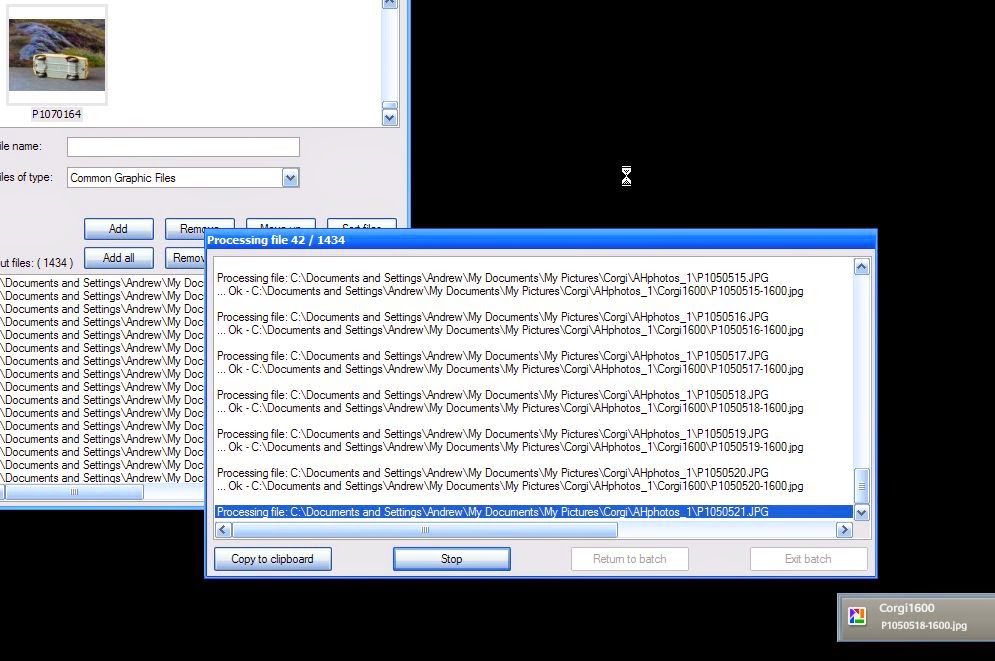
So the process would involve first resizing the original, renaming it and saving it somewhere, then uploading to the Google+ page. That's OK for a few images but I have nearly 2000. That's not all - why should I spend what could be many hours uploading them all when copies are already uploaded! Google Photos Auto Backup service has one or two things that annoy me but they're fairly trivial and the important thing that it does really well is upload everything almost as soon as it finds it. Indeed, as the more observant may spot, the screenprint below shows Picasa adding the 1600 versions of 1434 photos that Irfanview is batch editing from 4000x 3000 originals in one hit. Just out of shot is Google Photo's Auto Backup busily uploading the new 1600 size files.
Now, if the new 1600 size files were being uploaded to a place I could get at them from my Corgi Toys Business Page that would be brilliant but they're not. I can get at them as me but not as the me editing my Business Page.
Just to make this all even crazier - and you may have already appreciated this and smiled ruefully - Google Photos Auto Backup has already backed up the originals (well a slightly reduced size version which makes a zero impact on my file storage space but more than enough for web use). So there are now two perfectly usable image files up there and neither can be simply transferred to my Business Page. It's not as if I am asking for something impossible here; Google's Blogger makes this simple - using an image from a Picasa Web Album.
I suppose someone may write to me and say that I am missing something really obvious but I suspect that there are actually many others out there who have several Pages on Google+ and would like to be able to share images more sensibly.
I first wrote about this in connection with articles bout American Idol and X Factor where I had albums of contestant photos on my hard drive but had to upload to each place separately. That was bearable as there were usually just 20 or so at the most. With 2000 and counting Corgi Toy images this is a serious business!
I am presently using Irfanview to change the dimensions and save new files and will then upload a few at a time and see how that goes. It is such a drag but, until someone comes to my assistance, that's how it has to be. Or, I suppose, I could just not bother and just have a blog post about each model and the post and one photo will get automatically added by Blogger to the Corgi Toy page. That works well ad I am at a loss to know why it cannot work within Google+.
Oh well.
29 May 2014
Blue Screen Of Death prompts me to change
I have finally made the move to Windows 8. Well, I am about to; the machine is ordered and will be on its way in a couple of weeks. Several things made me go for the change. Seeing the good old Blue Screen Of Death was one!
I honestly can't remember when I saw that last on one of my own machines. It really must be very many years ago and I am not sure I have ever seen it on this desktop which has been going well since 2008. No idea what that particular message means but obviously something isn't as it should be, or wasn't last week.
That alone wouldn't have made me change, though. The machine had been shutting itself down from time to time but since I changed a web site so that it didn't need to process so many hundreds of images each time I changed something that hasn't happened more than once or twice.
It's probably several little things that have made me make the move now. My keyboard is not good and can be a bit of a nightmare to type on. I bought one with backlit keys which was great in many ways when my desk was positioned in shadow in quite a dark part of a room. After a while the key graphics wore away so many were just a blue blur and my son bought me a new one. That was nice but some keys are very sticky, sort of scruntchy and usually the A doesn't appear unless I make a specific effort to check and hit it hard. That has been quite a drag and almost every piece of text has had lots of errors, massively increasing the time it has taken to perform many tasks. It is also now located in a bright place and the back lighting is simply not needed. In fact, the key graphics are now very difficult to read! So I need a new keyboard. Not exactly the best of reasons for a new system but it did contribute.
I managed to make XP read my new XD card in a new camera some time ago but it has never wanted to delete images from the card so, after copying, I have had to run through them on the camera itself and delete through a quite laborious process involving each being selected individually. As I take photographs almost every day that has been a big drag. However, I don't know if Windows 8 will change that so it's more a hope than a reason!
It does take an age to get going. That is a good reason to change. I have tried all sorts of cleaning, removing stuff but all to little avail. I switch it on in the morning and then go and make breakfast. Even then some programmes take a good time to load. That's been getting increasingly annoying and I am sincerely hoping Windows 8 will transform that part of my life. The morning wait was OK but not the minutes' wait while something decided to start up.
Quite a big reason is Google Photos' refusal to edit my images in XP. That's annoying so, amusingly in a way, Google have sort of promoted a Microsoft product there.
Although Microsoft Security Essentials does continue to protect from viruses and is, presumably, updating virus definitions every day, that ruddy red castle icon and the messages every morning that I am at risk did get annoying. I had installed Avast but probably didn't need to and that is always suggesting this or that in an effort to wean me off the free version. All in all a bit tiresome. And you do tend to feel just a little bit more vulnerable, even if there is no real reason for that.
So that lot all adds up to time to change. Desktops are very cheap and, I guess, going out of fashion but a box on the floor is fine for me. I have a tablet and Chromebook for wandering around with. I've ordered a system from Mesh, who have given me equipment that has stood the test of time and my and my children's pretty intense activities since the late 1990s. I am sticking with an AMD processor, a quad core A8 this time with a 2GB Radeon graphics card to give me some future-proofing as I'm likely to use this to watch tv and films. Apart from Windows 8 Pro and 8GB RAM the computer itself isn't that much different but I won't be nagged about upgrades and I have a feeling it will be a lot quicker! The cost is almost exactly the same as 2008. Fascinating, and that includes a 24" monitor. That will be nice but, with a 1920 resolution compared to my current 1440 I have a feeling I shall need my glasses even more and sites will look tiny!
I am also intrigued to see how few programmes I will need to install compared to six years ago.
Admittedly, the full list does have some duplications but it looks a lot tidier after all the green deletions of things I am not going to need. I used to experiment a lot with alternative software and, in particular, Office and web design tools. Now, Google Documents handle all my day-to-day 'Office' requirements and Serif's WebPlus my site editing. I have several sites, though, for which I'll need Dreamweaver so it'll be interesting to find out if my ancient MX version will still function! If not, then I may be firing up an old machine again for that as there's no way I'll spend as much as a system on the latest Adobe software. In fact, I am looking seriously hard at Wix and others. Maybe even I'll give Google Sites another chance. My lovely CSS code sites were interesting to develop and have some advantages over the somewhat ponderous Serif product but the future is code that is written by the program not me.
Looking at what I need more closely,
Media programs
Total Recorder
Winamp
Spotify
VLC
Amazon Cloud Player
Skype
Design programs
Irfanview
Picasa
Serif DrawPlus
Serif Photo Plus
Serif WebPlus
JAlbum
Utilities
CCleaner
Nuance PDF Reader
7 Zip
Prey
G Drive
Greenshot
G+ Auto back-up
Tom Tom
Sony
No doubt there'll be games and some other odd bits and pieces but that is a significantly shorter list than the one I would have made six years ago.
One matter troubling me slightly is how I can transfer the huge amount of photos and music I have accumulated. Need to give some thought to that. I used a little cable six years ago which worked a treat but I have a feeling it might not work with Windows 8.
I shall write again with progress on the move. As almost everyone else in the world will have moved ages ago this may not be the most vital of articles but I just want to store all this for the record. In years to come we'll look back and grin. Or grimace.
09 April 2014
XP and from one scary message to another
OK. I admit it. I am still using Windows XP on a desktop. There, it's out now. I am so bad / lazy / unconcerned / old-fashioned / stupid [delete as appropriate to fit whichever news article you read]. Microsoft's support for the operating system stopped yesterday. I now get a warning when it starts and the Microsoft Security Essentials flag icon in my tray has turned red. Add to that a mass of articles and it is difficult to ignore the fact that XP is no longer 'supported'.
So, all credit to Microsoft in a sense for a massive increase in their name being mentioned everywhere. It is quite remarkable just how many people have stuck with Windows XP over the years. Vista really did not appeal and the press were critical at the time, Windows 7 initially seemed like a slightly fresher version of Vista (although it was a considerable improvement) but didn't seem that big a deal when XP was still managing fine and, having used both a lot over the years, I genuinely didn't see much difference in performance and decent protection kept systems running and free from nasty bugs etc. The years passed and Windows 8 definitely didn't appeal visually. I have had lots of clients, friends and colleagues call me up to ask for help with quite simple things with Windows 8 where, basically, they couldn't figure out what to do whereas they had been quite adept in earlier versions. That put me off upgrading too. I would have liked the more efficient system and anything that's faster and more secure is welcome but the interface had no appeal whatsoever and I dreaded the thought of being a beginner again!
So here I am. Still running XP on my desktop, which I use daily for all sorts of stuff. I do have Windows 7 on an ancient laptop but that is so slow and clunky in many ways that it's not a pleasant to use at all and it hasn't moved for many months. The main alternative machine is a Chromebook. That's is brilliant but I still need quite a few bits of software for drawing and web design that I can't do on the Chromebook. There are apps and they're improving all the time but I would struggle without my Serif, Dreamweaver and one or two other bits of software.
I will have to take the plunge into the Windows 8 ocean soon and have been looking at some new kit but, in the meantime, I thought I should do something about the dire warnings of imminent disaster. Microsoft do say that they'll keep updating the virus stuff in Security Essentials for another twelve months but that doesn't stop the flag being red or the warnings bout the 'system' not being updated. I think that means that if there is another hole discovered in the operating system code that allows people to wander around inside your files and steal data then Microsoft will not be fixing it. I understand that. It's fair enough. You buy an old car and accept that it may not do everything it should. Once the guarantee's up, you're on your own, even if they made a mistake when manufacturing it. You do get the feeling though that Microsoft are not so bothered and might not put much of an effort into protecting us old XP folk. They may update virus definitions or they may leave them for a while. Who knows? There may be more income-generating things to do. Now, I'm sure they won't deliberately put my files at risk but I don't feel comfortable and that damned red flag keeps reminding me of the fact.
So, as an interim solution for my nerves if nothing else, I downloaded Avast! a free anti virus programme that I remember using years ago. There are a few alternatives out there. AVG gets good reviews too as do some others. As with many free programmes, though, you need to be alert. Attempting to download from one quite reputable news site, I find a screen where I have to choose some add-on on the way. I cancelled that and went direct to Avast!'s own site. That was better and avoided the extra programmes. On the way you may need to untick some browser extensions or add-ons but there's nothing significant to worry about. I am not at all sure this will give me any more security at all, just more system resources being used up and an occasional scary message from some woman coming through the speakers, but I feel a bit better.
Now, back to deciding between a Shuttle and traditional desktop...
06 January 2014
Return Of The Desktop
Both HP and Lenovo have new releases this month. Desktops. Desktops running Android operating systems. They may be seen as some as just large tablets with leads to keyboards and a mouse (although they do have touch screens so the mouse may be an option) but could be a sign of something of an unexpected change of direction.
We have been getting used to Chromebooks - getting very popular as more and more people see that they can use them and that the devices are not merely for those of us who they used to think of as geeks. Android, however, is a far more familiar environment, being on the majority of their phones.
At prices the equivalent of under £300, however, and that can include a reasonably decent big monitor, and abundant apps already available for virtually any task, could this type of device become the living room controller? The central co-ordination point for (almost) all the other devices you wish to use.
Phones are great - they'll do almost anything and are there, ready for your thumbs, wherever you are. But the screens are a bit small - you can't comfortably share views with anyone other than boy/girlfriends or little sisters. (The screens are getting bigger but they're also getting uglier and too big to slip into pockets so where that line of development is heading I do not know.)
Tablets are cool, provided you don't want to type a lot. Nice screens and something you can pass around on the sofa but you're not going to leave it plugged in to do anything long-term. They never stay in one place either. Someone has usually borrowed it and forgotten to return it where you want it when you want it. They're also OK for close-ish viewing but not really standing alone in the corner for more than a few to watch.
Smart TVs are good as TVs and just about manageable if the internet programme is already selected or immediately to the left or right. above or below whatever's currently selected but that's it. Try to use a keyboard and the remote gets thrown at the cat.
Chromebooks are fine but not much bigger, screen-wise, than a tablet. Nor are any of the laptops, notebooks etc on the scene. All super toys and even work devices but they're not something to be left on or shared much.
A Windows desktop. Remember them? Nice big screen and it sort of sits somewhere and seldom moves - reassuring computing. But Windows 8 has made devastating inroads to our confidence as users. Do we click here or there. Where is that menu that opens - was it this edge or that? Oh, there isn't a Windows App for that then. Pity. I was very happy helping the few that needed help navigate their way around XP and 7 and could make the screen display just about anything I wanted it to. I tend to leave 8 alone and gingerly tap on rectangles and the background may forever be that dark shade of mid blue. 8, 7 XP or Vista, the fans whirr and buzz and interrupt any quiet moment. A black screen is never really black and there'll be updates that take an age just when you want to turn the damn thing off.
A silent running device in the corner, troubling no-one unduly, simple to work and substantially maintenance-free, at a price that allows it to be chucked out after a couple of years (or taken to bits by an inquisitive teenager), may be just the thing for 2014.
13 December 2013
The Dour And Unfathomable Nandsi
Thought I'd buy some British Premium Bonds. With interest rates on deposits almost non-existent at the moment, the idea that my cash is safe while standing a chance of winning something is far more attractive than 2 or 3% at best! Even if I win nothing all year I'll have lost no more than the cost of a pizza or two for each £1000 invested.
But how difficult does HM Treasury (or whatever those who hold the purse strings at National Savings) make it? You'd think anyone offering to top up the Government's coffers at this time would be welcomed with open arms.
First, I cannot just go on-line and buy them. I need some number. You can only get a number by downloading a form and printing it, signing it and posting it to somewhere near Blackpool.
Three weeks later, I get a letter with a secret password. It's almost something you'd expect to find in a Corgi Toy James Bond car set - little peel off windows with what could be invisible writing to the uninitiated. It might have been exciting had it not been so slow. I went to the site again and tried logging in with this new password. No luck.
It seems that the password isn't the number I need at all. That, apparently, arrives in a separate letter. So I wait. Another few days go by and this morning a letter arrives with a number. No peel off secret mission things, though. Never mind, now I can access the site, amusingly called nsandi.
The number works. Great. So does the password. But before I can do anything else I have to change it. I invent something complicated. No good says the first message in tiny red capitals in a red outlined box like something you might have seen in the late 1990s. Apparently I need a special character. OK, I throw in a full stop. Success.
Now I have a page that shows I have a massive £7 of Premium Bonds. Actually, I thought I only had one so that was a surprise. Now to buy a few thousand more... There ought to be a link to buy more, invest or something somewhere...
A few minutes later and I am still searching. OK, I'll try the main site rather than my account section. No Buy Now button anywhere so I try an Invest link and follow that through a page or two. It wants me to enter my number again. OK. here goes. More little red capitals. Number not valid. Hang on, it seems to want my Holder's Number and that is not, by the seems of it, my number. OK. I dig out my original Premium Bond document, now on fading yellowy paper with computer printing like an old typewriter.
But how difficult does HM Treasury (or whatever those who hold the purse strings at National Savings) make it? You'd think anyone offering to top up the Government's coffers at this time would be welcomed with open arms.
First, I cannot just go on-line and buy them. I need some number. You can only get a number by downloading a form and printing it, signing it and posting it to somewhere near Blackpool.
Three weeks later, I get a letter with a secret password. It's almost something you'd expect to find in a Corgi Toy James Bond car set - little peel off windows with what could be invisible writing to the uninitiated. It might have been exciting had it not been so slow. I went to the site again and tried logging in with this new password. No luck.
It seems that the password isn't the number I need at all. That, apparently, arrives in a separate letter. So I wait. Another few days go by and this morning a letter arrives with a number. No peel off secret mission things, though. Never mind, now I can access the site, amusingly called nsandi.
The number works. Great. So does the password. But before I can do anything else I have to change it. I invent something complicated. No good says the first message in tiny red capitals in a red outlined box like something you might have seen in the late 1990s. Apparently I need a special character. OK, I throw in a full stop. Success.
Now I have a page that shows I have a massive £7 of Premium Bonds. Actually, I thought I only had one so that was a surprise. Now to buy a few thousand more... There ought to be a link to buy more, invest or something somewhere...
A few minutes later and I am still searching. OK, I'll try the main site rather than my account section. No Buy Now button anywhere so I try an Invest link and follow that through a page or two. It wants me to enter my number again. OK. here goes. More little red capitals. Number not valid. Hang on, it seems to want my Holder's Number and that is not, by the seems of it, my number. OK. I dig out my original Premium Bond document, now on fading yellowy paper with computer printing like an old typewriter.
So, I put that number in and it gets accepted. But then another box of small red capitals tells me that I have already registered. Well yes, I know that. So what? So I couldn't go anywhere from there and there was no clue whatsoever on the page to tell me what to do now. I went back to my account section, logged in again. At least that was uneventful. Here I looked around again.
No obvious place to buy at all. OK, I thought, I'll look at what I have already and clicked a link to my £7 Bonds. Interestingly, I saw that they'd all been bought in 1957. There was a link to see if any had won so I gave that a click and there's a place to enter two dates. I try some time in 1957 in one box and today in another.
Small red capitals again tell me to select a date bigger than 1/1/2011 for the start box. OK, I see a note saying there are no records on-line prior to the on-line service starting but there is no clue as to when that was. I presume it was that 1/1/2011 date so enter 2/1/2011 just to be on the safe side.
More little red capitals tell me to choose a date bigger than 13/12/2011!! By now the air is blue and I am glad the children aren't within earshot. I enter another date and it tells me in the same tiny red capitals that I haven't got any prizes in that period. Nothing about the previous 54 years, though. If they had come up notification could have gone to any one of about thirty addresses. Oh well. Move on, and back to trying to buy some more.
It occurred to me that my Holder's Number was like an Account Number and not the 'Premium Bond' number and so maybe, as it currently held 7, there could be a way to add to that. Sure enough, there was. Finally.
It took over three weeks and at least thirty fraught minutes but I have now got 1007 Premium Bonds. There are limits on how many you can buy with some cards so I'll have to make several transfers but at least future ones may only take a few minutes.
Having said that, for some reason almost as inexplicable as the site navigation, my new Premium Bonds won't be eligible for any prizes until February 2014!! That's a bit disappointing to say the least and simply isn't the way to make customers lending you lots of money feel happy. If there was an alternative I would use it but, unless you know differently, the dour and unfathomable nsandi rules as OK as any.
I actually had more pleasure today unwrapping an old Corgi Toy Aston Martin I'd bought for £14. I get an immediate sense of satisfaction and achievement and a feeling that it might even be a better investment than cash in the bank too!
01 November 2013
Queued For Sending
SMS now seems so clumsy and slow to me. I am sure that if you live in an area where you have great mobile reception then text messaging is almost the default way to communicate with anyone. I do get a bundle each day myself. The difference is that replying is such a pain.
Actually typing the message is OK, thanks to SwiftKey, but then comes the really annoying bit. You hit Send. And wait. Queued For Sending. Then, some time later, if you're lucky, you hear the derponk noise that accompanies a change to Cannot Send, You try again. This time the display stays at Queued For Sending and there's nothing you can do. At least with Cannot Send you get a chance to Send Again. Not with Queued For Sending. No way. You have to hope that it either does go or that you hear the kerponk.
On occasion I have resorted to copying an unsent message and sending it again and it has gone before the Queued For Sending one! Now that has really confused recipients sometimes!
All in all it's a bit of a drag. In complete contrast is GMail and, indeed, several other apps now which have message systems embedded in them - all, of course, using the internet rather than mobile data connection. In every case, I have been able to communicate far more quickly and reliably - and in the case of GMail, include all sorts of extras like links and images simply.
My problem, of course, is that not all my recipients have the appropriate apps on their phones but more and more do and, to a large extent, I am replying to those that come in that way so it's not that much of an issue anyway. More relevant might have been lack of an internet connection but I am finding BT WiFi hot spots in far more places than I find decent mobile reception! Not sure how long that will remain the case and maybe I have just been lucky. To be fair, most of my SMS problems are at home in a rural village and that is where I get great internet service in contrast to the non-existent phone service indoors.
It is frustrating, though, to see all the money being planned for 4G networks so that people can watch movies on their way to work when so many people are like me and unable to make a simple phone call or send a message on their mobile without wandering around outside or balancing on a window ledge.
It may be terribly embarrassing for teenagers to see a dad holding his mobile in the air to get a signal but that is what has to be done here and it is not always easy to remember to avoid doing that elsewhere!
Soon there will be a High Speed train whizzing past a few miles away and neighbours may be crowing about their new £40 a month fibre optic internet connections but none of us will be sending each other SMS to comment.
The people on the train will probably have 4G beaming down to their devices. They'll probably be beaming as they look out of the window and see me in the middle of a field waving my arms around.
29 May 2013
Life With A Chromebook, Six Months Later.
It’s interesting to look back just six months when I was pondering a whole load of options for a new computer. I settled on a Samsung Chromebook, keeping my 4 or 5 year old Windows XP PC for whatever that wouldn’t do.
I had looked at all the things I did and the software I used to do them, concluding that there was an on-line version of something that would suffice for all but a few activities. Let’s see how I’ve fared.
By far the most activity has been e-mail and communication - more than I’d expected after meeting someone abroad! GMail has been great and, whilst working fast and furiously on the Chromebook, it was also much improved in operation and appearance on my Sony Xperia phone. The Chromebook handled all attachments too that I could throw at it.
Google Drive provided all that I needed to view and save documents and to create fairly straightforward ones. However, there are some shortcomings when it comes to more advanced things like removing headers and footers from a first page. That was surprising as other quite complicated tasks could be managed but not anything like sections.
Sheets are Google’s answer to Microsoft’s Excel and they have worked just great for years. I publish a chart each week that entails copying 100 items in bulk from a web page and pasting that into a spreadsheet. I was delighted to find that Google’s product accepted the data and arranged it in cells, saving me a huge amount of work. Formulae, including quite advanced ones, work seamlessly and I feel quite at home there. Deleting several rows usually throws up an ‘Ooops’ message every so often but I find it always works next time. Perhaps with 600+ rows to handle there is some delay in the server doing its best to preserve versions in case I want to restore data wrongly deleted!
I then publish a small section of the sheet that displays the Top 20 after applying some formulae. Taking a screenshot is simple and it’s filed automatically. Opening the file, there is a basic but efficient editing tool where I can crop the screenshot, save it and it’s ready to go on Google+.
I also do quite a few charts and graphs which Google Sheets present really well, especially in live on-line form where users can click lines or columns and get additional information. Not only are the charts more informative than Excel’s standard fare but also they are a refreshing change of style and even colour to the ubiquitous shades and style of Excel. Yes, I know you can change Excel in a million ways but it takes time! My only criticism is that it can be a bit clunky sometimes, using code to change the data being used for the charts - especially awkward when you want to skip some columns or rows!
I have also been using Google Slides a lot. They’re Presentations by another name now. I find them a really smart way to present information on web pages, using mini embedded sets of slides to do so. I don’t know how I could do this with PowerPoint. I also use Slides for actual presentations too. The themes are very basic and are early dreadful Google in style (as for Forms!) I suppose someone will get round to changing them eventually but it does encourage one to use white slides with simple black text and that, my friends, is no bad idea!
For images, as I have written elsewhere, life with Google can be confusing. Good. But confusing. I often need to edit images and add text on-line which is quite a simple operation using the newish Picnik-influenced interface for what I need to do in that respect. Anything more, though, and life can get tricky. Picasa is superb for image edits of almost every type I need but I can only do that off-line and not on the Chromebook.
On-line, if you view an album of your Picasa uploaded pictures you will be taken to Google+ Albums. If you spot it quickly enough, there is a highlighted line of text where you can return to Picasa Web Albums. It looks very much as if the latter is doomed and Google+ Albums will be the sole place to go. For now, though, you have different editing tools and processes depending upon where you are! None are like the off-line Picasa tools which are so good. You can elect to edit in Picasa and download the image and then upload it again but I found that even more confusing and, of course, that needed to be on the PC as there is no local Picasa on a Chromebook.
There are several on-line editing tools outside Google that I shall examine sometime but, because of other reasons, I do all my image work (apart from the quick edit and text addition mentioned) on the PC. The main reason is that I take loads of pictures and would by now have filled up the tiny bit of storage space on the Chromebook - assuming that I could actually have connected it to my camera (or vice versa I suppose that should be). A new Panasonic Lumix uses a huge 64GB XC card and Chrome OS can’t read it! In fact, I had to get a special download for Windows XP to enable it to be read on the PC. I guess Google will eventually update Chrome OS but I don’t think they have yet. So photos go to the large PC hard drive and there I have all the facilities I need. The main one, though, is Picasa, with uploads to Google+ or Picasa Web Albums and thence to the world.
I have many blogs and write lots of articles for which Google’s Blogger has been more than satisfactory to date. I also like the way you can share new posts on Google+ too, directing each blog to the appropriate Google+ profile.
As I have mentioned, Google+ has been the place that I choose to post things first or to link blog posts from. Until recently there was a useful add-in to Google+ that made sharing posts to Facebook and Twitter quite easy. That appears to have disappeared following a change in the presentation of posts in Google+ so I am resorting to copying and pasting links at the moment. I am sure, however, that It will not be long before someone comes up with a sharing facility again if, indeed, they haven’t already!
Music with the Chromebook is fine provided it’s on-line! I use Amazon’s Cloud Player, Rdio and may start trying Google Player too but the others work fine. The speakers are nothing special though so, as it is seldom that I need music on the move, I use the PC anyway. BBC’s iPlayer and websites offering live programmes of all sorts, including regular channels work well and I can watch TV or recordings anywhere with an internet connection.
For Twitter, one of the few non-Google products I use nowadays, the excellent Tweetdeck app does exactly what I want, enabling simple posting as whichever of three profiles I require.
The other non-Google software, and the main area where I cannot use the Chromebook, are web design tools - the design and editing tools like Serif DrawPlus and PhotoPlus and their WebPlus product as well as Dreamweaver.
I am starting to use Wix more, and more effectively too, and Google’s Blogger can create some very attractive and simple sites on-line. However, most clients’ requirements still seem to need the off-line tools and that remains beyond what I can do with the Chromebook. To be honest, though, I wouldn’t expect to move from my PC for that sort fo work where a mouse or tablet is far more accurate and satisfying to use than fingers on a shiny trackpad!
So I am giving the Chromebook lots of good reviews. The keyboard is a delight to use, the battery lasts for hours and hours - easily meeting the specified 6 or 7 hours for me - and it is light and, of course, just starts without fuss or waiting. These features still impress me even now.
I need to figure out how to tether it to my phone so I can use it when on the move as more often than not I am not finding a connection and the phone seems able to find spots that this doesn’t! It can be frustrating when you want to show someone something - a document or photo or web site - but without an internet connection you can’t! There is something about off-line documents or mail I must investigate. There may be an answer but I reckon a phone connection may be the key. More about that another day.
What has surprised me is just how little I use non-Google apps or software now. That isn’t just the Chromebook’s influence but simply the fact that the products are getting better all the time and everything (except Picasa-G+) works well together.
Another factor in making on-line activity easier has been the installation of Jelly Bean on my Sony Xperia mobile. This has made internet use much faster and communication simple with new attractive interfaces for Google’s Hangouts. The ability to view sites and search quickly diminishes the need to consult a laptop or PC.
I do still fancy a Nexus tablet though! Not that this will in any way enhance anything I do. But I still want one. I just tell myself that all this time waiting will result in a much smarter version being available as and when I do succumb to temptation.
That reminds me, I must sell that Asus EeePC that I just fancied in 2007 and hardly ever used after the first week.
I had looked at all the things I did and the software I used to do them, concluding that there was an on-line version of something that would suffice for all but a few activities. Let’s see how I’ve fared.
By far the most activity has been e-mail and communication - more than I’d expected after meeting someone abroad! GMail has been great and, whilst working fast and furiously on the Chromebook, it was also much improved in operation and appearance on my Sony Xperia phone. The Chromebook handled all attachments too that I could throw at it.
Google Drive provided all that I needed to view and save documents and to create fairly straightforward ones. However, there are some shortcomings when it comes to more advanced things like removing headers and footers from a first page. That was surprising as other quite complicated tasks could be managed but not anything like sections.
Sheets are Google’s answer to Microsoft’s Excel and they have worked just great for years. I publish a chart each week that entails copying 100 items in bulk from a web page and pasting that into a spreadsheet. I was delighted to find that Google’s product accepted the data and arranged it in cells, saving me a huge amount of work. Formulae, including quite advanced ones, work seamlessly and I feel quite at home there. Deleting several rows usually throws up an ‘Ooops’ message every so often but I find it always works next time. Perhaps with 600+ rows to handle there is some delay in the server doing its best to preserve versions in case I want to restore data wrongly deleted!
I then publish a small section of the sheet that displays the Top 20 after applying some formulae. Taking a screenshot is simple and it’s filed automatically. Opening the file, there is a basic but efficient editing tool where I can crop the screenshot, save it and it’s ready to go on Google+.
I also do quite a few charts and graphs which Google Sheets present really well, especially in live on-line form where users can click lines or columns and get additional information. Not only are the charts more informative than Excel’s standard fare but also they are a refreshing change of style and even colour to the ubiquitous shades and style of Excel. Yes, I know you can change Excel in a million ways but it takes time! My only criticism is that it can be a bit clunky sometimes, using code to change the data being used for the charts - especially awkward when you want to skip some columns or rows!
I have also been using Google Slides a lot. They’re Presentations by another name now. I find them a really smart way to present information on web pages, using mini embedded sets of slides to do so. I don’t know how I could do this with PowerPoint. I also use Slides for actual presentations too. The themes are very basic and are early dreadful Google in style (as for Forms!) I suppose someone will get round to changing them eventually but it does encourage one to use white slides with simple black text and that, my friends, is no bad idea!
For images, as I have written elsewhere, life with Google can be confusing. Good. But confusing. I often need to edit images and add text on-line which is quite a simple operation using the newish Picnik-influenced interface for what I need to do in that respect. Anything more, though, and life can get tricky. Picasa is superb for image edits of almost every type I need but I can only do that off-line and not on the Chromebook.
On-line, if you view an album of your Picasa uploaded pictures you will be taken to Google+ Albums. If you spot it quickly enough, there is a highlighted line of text where you can return to Picasa Web Albums. It looks very much as if the latter is doomed and Google+ Albums will be the sole place to go. For now, though, you have different editing tools and processes depending upon where you are! None are like the off-line Picasa tools which are so good. You can elect to edit in Picasa and download the image and then upload it again but I found that even more confusing and, of course, that needed to be on the PC as there is no local Picasa on a Chromebook.
There are several on-line editing tools outside Google that I shall examine sometime but, because of other reasons, I do all my image work (apart from the quick edit and text addition mentioned) on the PC. The main reason is that I take loads of pictures and would by now have filled up the tiny bit of storage space on the Chromebook - assuming that I could actually have connected it to my camera (or vice versa I suppose that should be). A new Panasonic Lumix uses a huge 64GB XC card and Chrome OS can’t read it! In fact, I had to get a special download for Windows XP to enable it to be read on the PC. I guess Google will eventually update Chrome OS but I don’t think they have yet. So photos go to the large PC hard drive and there I have all the facilities I need. The main one, though, is Picasa, with uploads to Google+ or Picasa Web Albums and thence to the world.
I have many blogs and write lots of articles for which Google’s Blogger has been more than satisfactory to date. I also like the way you can share new posts on Google+ too, directing each blog to the appropriate Google+ profile.
As I have mentioned, Google+ has been the place that I choose to post things first or to link blog posts from. Until recently there was a useful add-in to Google+ that made sharing posts to Facebook and Twitter quite easy. That appears to have disappeared following a change in the presentation of posts in Google+ so I am resorting to copying and pasting links at the moment. I am sure, however, that It will not be long before someone comes up with a sharing facility again if, indeed, they haven’t already!
Music with the Chromebook is fine provided it’s on-line! I use Amazon’s Cloud Player, Rdio and may start trying Google Player too but the others work fine. The speakers are nothing special though so, as it is seldom that I need music on the move, I use the PC anyway. BBC’s iPlayer and websites offering live programmes of all sorts, including regular channels work well and I can watch TV or recordings anywhere with an internet connection.
For Twitter, one of the few non-Google products I use nowadays, the excellent Tweetdeck app does exactly what I want, enabling simple posting as whichever of three profiles I require.
The other non-Google software, and the main area where I cannot use the Chromebook, are web design tools - the design and editing tools like Serif DrawPlus and PhotoPlus and their WebPlus product as well as Dreamweaver.
I am starting to use Wix more, and more effectively too, and Google’s Blogger can create some very attractive and simple sites on-line. However, most clients’ requirements still seem to need the off-line tools and that remains beyond what I can do with the Chromebook. To be honest, though, I wouldn’t expect to move from my PC for that sort fo work where a mouse or tablet is far more accurate and satisfying to use than fingers on a shiny trackpad!
So I am giving the Chromebook lots of good reviews. The keyboard is a delight to use, the battery lasts for hours and hours - easily meeting the specified 6 or 7 hours for me - and it is light and, of course, just starts without fuss or waiting. These features still impress me even now.
I need to figure out how to tether it to my phone so I can use it when on the move as more often than not I am not finding a connection and the phone seems able to find spots that this doesn’t! It can be frustrating when you want to show someone something - a document or photo or web site - but without an internet connection you can’t! There is something about off-line documents or mail I must investigate. There may be an answer but I reckon a phone connection may be the key. More about that another day.
What has surprised me is just how little I use non-Google apps or software now. That isn’t just the Chromebook’s influence but simply the fact that the products are getting better all the time and everything (except Picasa-G+) works well together.
Another factor in making on-line activity easier has been the installation of Jelly Bean on my Sony Xperia mobile. This has made internet use much faster and communication simple with new attractive interfaces for Google’s Hangouts. The ability to view sites and search quickly diminishes the need to consult a laptop or PC.
I do still fancy a Nexus tablet though! Not that this will in any way enhance anything I do. But I still want one. I just tell myself that all this time waiting will result in a much smarter version being available as and when I do succumb to temptation.
That reminds me, I must sell that Asus EeePC that I just fancied in 2007 and hardly ever used after the first week.
24 May 2013
Microsoft's Word App
We've had Office 365 for ages and its web versions of Word, Excel and PowerPoint (and, yes OneNote, if you insist) but it is only recently that Microsoft have promoted these. They now call them their Word app (and presumably Excel app etc.)
Google really have led the way in this respect with their Docs getting better and better and considerable integration of Drive in Chrome. Microsoft have done a lot to try to keep up, including an Excel Survey app which I have only just noticed! That may rival the very effective and useful Google Forms, I'll have to review that later.
I thought I would have a quick look to see just how close Microsoft had got to something that really does rival Google.
Accessing your SkyDrive is easy enough, and your folder f documents is displayed. There's a strange-looking symbol for PDF documents. I opened a new Word App document and pasted in some content from a document I had in G Drive. The images didn't come with the paste but the text layout was OK and there are a reasonable number of styles and formatting options in the familiar-ish ribbon.
I chose that particular document because I wanted to remove a footer from the front page which I couldn't do in Google Docs. Hmmm. In Microsoft's Word app you can't even add a footer, never mind what I was trying to do! So I am afraid that's as far as I went. It will need to be more advanced if it is to be a real challenge and not just a place where people who haven't got a Google account go to create simple documents.
Excel looks more powerful but I really can't at this time recommend a move away from Google Docs which are getting better every week.
Something that Microsoft do give you, though, that I spotted is a link to your folder. I suppose Google do provide a url you can copy but here is an embedded blue box! Absolutely no way to change the security for individual items but never mind. And they do warn you about that. So it's pretty useless but quite pretty.
You'll see items there from 7 years ago when I first started experimenting. Gosh, was it that long ago! You'll also see that I have done nothing since.
The necessity to use docx may annoy some who still like Office2003 and there is only Download as a Word document as an option. All a bit restrictive. But more familiar to many and a port in a storm, I guess.
Google really have led the way in this respect with their Docs getting better and better and considerable integration of Drive in Chrome. Microsoft have done a lot to try to keep up, including an Excel Survey app which I have only just noticed! That may rival the very effective and useful Google Forms, I'll have to review that later.
I thought I would have a quick look to see just how close Microsoft had got to something that really does rival Google.
Accessing your SkyDrive is easy enough, and your folder f documents is displayed. There's a strange-looking symbol for PDF documents. I opened a new Word App document and pasted in some content from a document I had in G Drive. The images didn't come with the paste but the text layout was OK and there are a reasonable number of styles and formatting options in the familiar-ish ribbon.
I chose that particular document because I wanted to remove a footer from the front page which I couldn't do in Google Docs. Hmmm. In Microsoft's Word app you can't even add a footer, never mind what I was trying to do! So I am afraid that's as far as I went. It will need to be more advanced if it is to be a real challenge and not just a place where people who haven't got a Google account go to create simple documents.
Excel looks more powerful but I really can't at this time recommend a move away from Google Docs which are getting better every week.
Something that Microsoft do give you, though, that I spotted is a link to your folder. I suppose Google do provide a url you can copy but here is an embedded blue box! Absolutely no way to change the security for individual items but never mind. And they do warn you about that. So it's pretty useless but quite pretty.
You'll see items there from 7 years ago when I first started experimenting. Gosh, was it that long ago! You'll also see that I have done nothing since.
The necessity to use docx may annoy some who still like Office2003 and there is only Download as a Word document as an option. All a bit restrictive. But more familiar to many and a port in a storm, I guess.
Subscribe to:
Posts (Atom)