23 October 2012

The Chromebook. 100GB Free Storage. One Decision Made Easy.


£229. Includes 100GB of space on Google Drive. 11.6" screen. Nice keyboard.

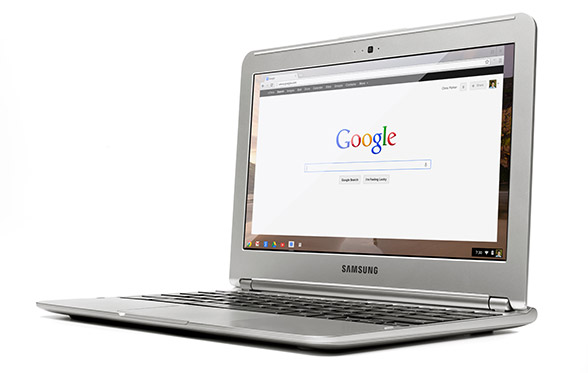
This little notebook, netbook, laptop, call it what you like, is something I omitted from my First Thoughts article. It changes everything and has really got me thinking - second thoughts, of a sort. 

It's actually the Samsung Chromebook and is a delightful device in many respects. First, the price. That's less than half of what you'd expect to pay for a decent laptop and a good £100 less than what I would say was it's closest competitor, a Lenovo Ideapad S206. Even that's a clunky looking device.

Second, it will be ready to use out of the box, well, 10 seconds later. That's the start-up time which no Windows or Apple machine can even begin to match. This puts it firmly in Android or iPad tablet territory in that respect. One of the most frustrating things about using any computer has been the wait while things whirr away and decide whether or not to display a screen from which you can actually get on with whatever it was you wanted to do.

Third, it doesn't need updating or maintenance. As soon as you get a Windows machine, in particular but it can apply to Macs too, you'll probably find that the operating system has a pile of updates and patches that need to be installed. Remember 'Do not turn off or unplug your computer... 5 of 67 updates installed...'? Well, no more of that. Everything associated with the operating system will be updated over the internet automatically. Google are constantly checking and improving their Chrome OS and, just like their Chrome browser, you won't notice anything other than things improving. You don't need to worry about anti-virus or malware or nasty things generally. There's nowhere for them to go on these devices. And the updates are free. No worrying about whether you need to fork out for Windows 7, 8 or whatever or whether your computer is able to run it.

Fourth, it's completely quiet and cool. It doesn't need a fan. There's no hard disk spinning either and all this contributes to an expected 6½ hours before recharging.

So what's the down side then?

The operating system is, for all practical purposes, the Chrome browser and everything you do is based on on-line apps. That sounds really restrictive when you first read it but it may not be. I opened up Programs on my desktop and the screen filled with the list of software that is available to me - software that I might have to give up using on a Chromebook. How can I survive without all these? I wondered. Straightaway I realised that there was a huge number that I had either never used or just installed to experiement with. So I'll ignore those and look at what's left, which is still quite a few. (Now mine will be different to yours but there'll be some common types, I'm sure, so bear with me.)

Personal entertainment 

Total Sound Recorder
Video editing
VLC and other DVD Players
Music Players
Amazon MP3 Downloader
BBC iPlayer
Vuze file sharing and bit torrent tools

Office and work software

Calculator
Notepad
Libre / Open Office
Microsoft Office
7Zip
Skype
Prey Security
Cisco VPN
Sony PC Companion

Design software

Coffee Cup mp3 and video web players
Irfanview
Picasa
Serif Web Plus, Draw Plus and Photo Plus
JAlbum
Dreamweaver

The items in bold are those that I use frequently - if not every day then several times a week for things I really need or want to do. The others I can live without on a regular device - as long as they are still available on something I can start up as and when necessary.

So could I run my day with a Chromebook? The question is really: Are there ways to do the same jobs using Chrome Apps or web tools? (Suddenly I appreciate just how important my web tools site is going to be - and how much I am going to have to update it now!)

Personal entertainment

Yes - I use Amazon's Cloud on my mobile and that works a treat so I am sure I'll be able to cope with that or one of many others that are listed on Google Play. What I won't be able to do is play tracks that I only have stored locally and currently use Media Player or Winamp for. So I'll need to have a larger selection on-line or put them on a CD and plug in an external drive. (I am assuming that will work fine but not sure how though.)

TV programmes I can watch without having to download a player nowadays and so the only tools I'll not have access to would seem to be sound and video recording or editing. I seldom need these, though, and don't mind firing up a PC to do this as and when required.

As you'll see later, I will retain a desktop of some sort with a large screen anyway to view TV and video so that can continue to meet fixed kit in the room needs and will have decent speakers too which no laptop will have.

Office work

There are apps that'll calculate and take quick notes. (I only used Notepad because it loaded instantly anyway.)

There's Microsoft 365 which is all on-line if I still need the familiar Microsoft environment for Word, Excel and PowerPoint. I can get by quite happily without other members of the Office family. More importantly, though, Google Documents will be sufficient for nearly all of my day-to-day requirements and there is an off-line capability now in this application which means I don't have to be connected to work with documents. A synchronisation process will cut in whenever internet access is available to ensure everything is updated accordingly.

This will also be available for GMail. I use no other mail service and have never been bothered about having an off-line access to mail since abandoning Outlook a long, long time ago. However, I am aware that there are many people who will take a while to get out of the 'downloading' mail way of working but I am sure that, if using GMail as it stands doesn't persuade them to stop worrying, the off-line facility will.
There will be some more complex Excel files or lengthy Word documents, though, that I would prefer to work on or with in the Microsoft environment. I am a huge fan of Google Documents but still struggle to make everything look as good or work as well as I can achieve with Old Blue. So I will be keeping an old version of Microsoft Office on that occasional use PC too.

I can happily abandon Libre Office or Open Office now and will not miss either.

I believe that Skype will be available as an app soon rather than something that will need to be downloaded. As Microsoft now own Skype there is, I suppose, the query as to how simply it will integrate with Chrome but for the occasions when I do want to use video call or conference facilities there are other more than adequate apps like the excellent meetings.io.

I'll still need an unzipping utility and I'm not aware yet of an app for that. This may be something else I need the old PC for but, again, it's not a frequently used tool. (I am assuming that it will be possible to save attachments onto a USB drive. Need to check that.)

That leaves three important but little used bits of software. Prey is my mobile device security manager. I use CISCO VPN to access files on a University intranet. It's an ancient and clunky affair that, along with Prey and my mobile PC Companion, I guess will remain on the old PC for the very occasional times I need them.

Design software

These are probably more important to me than they will be to most because I do a lot of original artwork and web design. I would, in any event, prefer to use a traditional PC with a large screen, mouse and tablet for this work and to do so at a desk. Even if none of the above had done, this justifies the retention of a traditional desktop. I should remember too that I would still also keep the big screen anyway to watch TV or movies on - and the decent speakers.

So I can keep all the items listed there. What I may well want on a portable device will be some photo access and management tools. Picasa is already on-line and well integrated - I shall just have to save more on-line. At present it's just the best stuff but having back-up of photos on-line is something I really should have been doing a lot more than I ahve to daye anyway.

I am slowly moving from Dreamweaver to Serif Web Plus for new sites but that work remains desktop and Windows-bound. I wonder whether Serif, or someone, will make a move to put web design on-line? I am also increasingly attracted to the likes of Wix, Weebly and Yola too which can produce excellent results wholly on-line for fairly simple requirements. Google Sites has been around for ages too but never been terribly popular. I do hope that there are some developments soon as this is an area that I would like to be able to work in on the move.

JAlbum already has a good on-line system. Irfanview I will miss. The ease of managing things like screen prints or very quickly adjusting an image on the go, rather than waiting for heavier programmes to rev up and get going, I have written admiringly about for years. Perhaps it might run from a USB drive somehow? Something else to investigate. There are, however, lots of new image editing apps now on the scene so I guess it might not be a problem at all. Indeed I may find something new and even better, speed never being a problem with a Chromebook.


In conclusion, therefore, there will be a clear separation of activities and getting a Chromebook would force a change of work methods that perhaps I will ultimately find quite beneficial. I will have a modest desktop unit from which I can strip a lot of stuff and retain just for fixed things: an entertainment centre and design workhorse, plus one or two occasional maintenance or administrative matters. These are all things where start up speed is not vitally important, nor is a change of operating system. My present PC will last for a while. When it gets tired then I'll get a Shuttle but no rush.

The Chromebook will be the default device I start up each morning to check mail, write articles with, social network on, buy things on and organise my life and communication generally with. Depending on the answers to a few of the questions I've raised, it may even take care of quite a bit of basic photo editing and management too.

I can't see any advantage now of getting a Windows laptop. The reasons I stopped using my last one were:
  • the time it took to get started, 
  • erratic behaviour 
  • it was noisy and very hot
  • even the 15.6" model was a bit big and inconvenient
  • 1½ to 2 hours battery life meant I nearly always was working with restricting leads


A Chromebook will remove every single one of those points.

Is a tablet an option? It could be but it would need a keyboard for the amount of writing work I do. The Microsoft Surface tablet running RT simply will not give me access to enough additional software and apps seem few and far between yet. It is also damn expensive at £479 including the cover and I'd really want the even more costly better keyboard option too.

The ASUS TFT300T with its detachable keyboard is something I have liked for a while. It's £380, though. That's £150 more. The Android system will be fast and familiar but I can't see it being any better than a Google embedded system. Updates will depend too on the hardware, just as some phones don't seem to qualify automatically for the latest edition, so I'm not sure how far down the Android A-Z dessert road it will get. Not a major issue, though, but with a smaller screen, does the £150 justify the smart tablet + keyboard combination?

I'll need a fair bit of on-line storage with either Android or Chrome OS. Google Drive currently charge $4.99 a month for 100GB. You get 2 years' worth FREE with the Chromebook (and 5 550 model). That's nearly $120 worth. At US prices the Chromebook would cost me a net $150. That's a no-brainer for anyone in the States. Here in the UK it cuts the cost to about £150. Still seems like one hell of a bargain to me.

So decision made. Whatever Microsoft or Apple announce this week! Now, back to my son's desktop PC...


17 October 2012

Time For A New Desktop, Laptop Or Tablet? First thoughts.

Once upon a time if you wanted a computer you really had just two choices: something big with lots of parts and cables or something portable. A desktop or a laptop. That made decisions fairly easy. Now, life is much more confusing.

There are still desktops and laptops but we now have notebooks, netbooks, ultrabooks and tablets or pads.

As if that wasn't enough, most of us would have only to choose between a Windows or Mac operating system and that was pretty easy - you tended to be a big fan of one of the other or there was a clear case of which best suited what you wanted to do with it and price was quite a significant factor too.

Now we have Windows and Apple's IOS but Google have now properly entered the game with Android.

Some mobile phones, or smartphones as they're better termed now, are almost big enough to be considered as a computing device option for some too but that could really get complicated with Blackberry and others in the mix.

So, with a desktop that is beginning to look and feel a bit slow and a laptop that is noisy, gets hot enough to heat the room and is unbearable on a lap for long and with little more than an hour's unplugged use, it's time to get some new kit. But what? This is a simple run through of what I've found so far. The gamers and those to whom money's no object out there will not approve of my choices, I know, but this may be helpful to those who may have been getting as confused as I have by terminology and the huge range of prices.

A desktop still has many attractions. I tend to switch one on in the morning and it runs all day, being the main workhorse that runs all the programmes I need and where all my files, especially photos and documents are stored. I am increasingly storing documents on-line with Google Drive and working copies of photos on Picasa albums on-line but it will be a long time, if ever, before everything is stored there and, even if it's just for back-up, I can see I'll need a huge local hard drive of some sort that, for a while yet, a desktop provides.


There are nice quiet systems available now which are almost unnoticeable, not that my 4 year old one is at all noisy. My son's, which had a graphics card and power supply upgrade is a lot noisier though so he'd appreciate a newer, quieter box of some sort or size.

Windows 8 would still be the only choice for me as I tend to experiment with software and the things I use regularly, like web design software, design and photo editing software and even Office-type software, albeit to a lesser extent, need Windows and I would have to replace everything if I were to switch to a Mac. With a desktop I can hang on to the decent 19" screen and other ancillaries for a while which all work fine. I would really miss the lit keyboard keys at night so definitely want to avoid losing that. To get the most out of Windows 8 reports say that a touch screen is needed so, in due course, I may have to change the screen but initial prices are likely to be high and, actually at the moment, I can't imagine myself stretching out across the desk to wipe across the screen anyway. I like the screen at quite a distance away and I'll be quite happy to stick with the keyboard and mouse for some time yet which I am sure will be more efficient for much of my more detailed work. The swipe and drag screens are brilliant on phones and clearly suit tablets but I just don't see it being much use with a desktop and I'm sure new types of mouse movements and even good old keyboard commands will do for a while yet.

Something else a desktop will do well is act as an entertainment centre. I already have a decent set of speakers so it would also function well as my CD/DVD/mp3 player and even a radio, TV and video player quite adequately.

The key requirements are a fast processor - at least Intel i5 or AMD equivalent, a graphics card that can cope with most normal requirements (I'm not too worried about the really intense games, just as long as videos and the occasional game my son will play are reasonable), at least 4GB of RAM and a simple DVD player / burner would be useful.

A decent unit from Mesh would cost under £500 for that sort of spec so that's looking good.

Just as I was writing this I discovered while looking for something else an article on PC Advisor's Stateside site where they manage to do all this for under $500 but, of course, they can build it themselves which I can't!

For those that can, though, here's the actual components that PC Advisor (in the US) used to make their own:
Processor: AMD A8-3870K 3.0GHz Quad-Core Desktop APU - $108.99
Graphics: XFX Radeon HD 6570 1GB Graphics Card - $44.99 (after a $15.99 mail-in rebate) Motherboard: ASRock A75M-ITX Socket FM1 Mini ITX Motherboard - $89.00
Memory: Corsair Vengeance 8GB (2 x 4GB) DDR3-1866 Memory - $46.99
Storage: Seagate Momentus XT 500GB 7200 RPM Solid State Hybrid Drive - $79.99
Case: BitFenix Prodigy Mini-Tower - $79.00
Power Supply: Corsair Builder Series CX430 430W Power Supply - $24.99 (after a $20 mail-in rebate) Optical Drive: Lite-On iHAS124-04 DVD Burner - $16.99

[ Here's a link to the PC Advisor article ]
I like the sound, or lack of sound, of the new solid state drives and the idea of liquid cooling but these features are still quite expensive additions. The only thing I would like to change is the size of the flaming units. I had a lovely Shuttle about 8 years ago and iCubes offer some interesting devices which look neat and small. You can configure your own and I managed to get something with an i5 processor, a decent graphics card and 4G RAM in a new Shuttle or iCube box for about the same price as the Mesh desktop that met my requirements. That included a 64GB SSD drive which ought to help speed things along and keep the noise down too. That's not a lot of space but maybe I can figure out a way to utilise my old hard drives or spend a bit more if I can't so that's not a big problem for the benefit of the better appearance and space saving.

So for the main unit that's on all day and would do the most work, this Shuttle might have the edge.

Now, for something portable. I have been quite envious of colleagues whipping out their tablets (usually iPads) at meetings so I wondered whether there'd be anything in that line that would do what I needed.

If you need something to carry around, and to work with rather than just use on-line applications, then it will, again, need to be a Windows 8 piece of equipment. An iPad or Android tablet simply won't run any software I want to use so, attractive though devices are, they would seem to be luxury extras rather than essential tools at the moment. I need also to beware Windows 8 RT which I understand to be rather different to Windows 8 so the new Windows Surface devices don't look to be contenders either.


Something that does look attractive is the new Lenovo Yoga which looks like a laptop but the screen can slide to make it a still very thin tablet. But it looks expensive. Similarly the ASUS Transformer which has just come out, is beautifully made, with a screen that actually detaches as a 'real' tablet or locks in to work like a laptop. That's expensive too and is an Android machine so rules itself out on both counts if needed to run local programmes.

Looks like I'll have to give up on the tablet front then.


So, for the portable option, it's either a laptop, notebook, netbook or ultrabook. It may be a good idea sort these out once and for all. As far as I can gather, laptop = notebook so let's stick with laptop for now. A netbook would appear to be a small laptop, screens of up to 10" or maybe 11". They seem to be almost all Windows - one or two 7 inch running Andoid from makers I've never heard of - with a fair bit of choice but not as much as for ultrabooks. Now, ultrabook is a marketing term for a laptop that has been built to a specification set by Intel, in order to ensure a high-quality user experience. The requirements change as new chips are released and, for Ivy Bridge systems, currently include fast startup, a maximum thickness that varies according the screen size, and a battery life of at least 5 hours. So they're laptops without DVD drives made really thin and, ostensibly, with higher end processors, presumably Intel.
Read more ]

Netbooks are lovely little things and could cope with day-to-day software. You'd need to use a portable DVD drive to install stuff. Most come with Intel Atom or AMD's equivalent lower end processors and integrated graphics which are OK these days but not exactly brilliant, although they'll do for most purposes. They are so small, though, that they're far more likely to be used just for checking things on the net for which an Android machine or tablet will be just as good and, with all the free apps available, offers more flexibility in terms of what you can make it do for you on-line.

I'm not too bothered about how thick or thin the device is so it looks like a fairly boring sounding, standard-size, laptop will be the answer at the end of the day, despite all the wonderful new gadgets that are coming along. One with normal Windows 8 should be fine for a few more years. 


There are ASUS laptops with i5 processors, 6GB of RAM and all the features you'd need for about £400, including better cooling and sensitivity control that prevents the trackpad working when you accidentally brush it with a palm. Something like that would seem to make sense, provided you weren't using it all day long.

This is still a bit disappointing, though. I had hoped I might find something that didn't need to be clumsily opened up and which took a while to get going while my colleagues were busy slipping out their tablets and showing each other this or that before I'd even found the start button which, of course, doesn't exist any more. In fact, I am wondering whether I can get away with hanging on to my lap burning device for some time until someone does produce a tablet at a price I can manage that does let me work on some local design software like Serif or play music without an internet connection.

That seems to mean no laptop after all. Wait and see what happens with tablets.

It does seem that most of the tablets are very much 'luxury items' by which I mean they're not exactly needed for anything. That doesn't mean I don't want one - just that I don't really need one. My Xperia phone provides a fast and smart-looking browsing experience and will play movies and whatever else I might need it to do while lying around on the sofa, in bed or in the car. So, if I do persuade myself that I ought to have one I would be inclined to ignore most of the reviews that compare them to laptops in some shape, form or another and instead just get something that has a nice display that works. Android would, I think, be essential at least until Windows populate their apps store and possibly afterwards too, with the attraction of ever-improving free operating system upgrades.

I am very tempted by a Nexus 7, though. Just £190. Even though I don't need it. I would be able to join the 'have a look at this' club.

And put some of the £300 saved towards making a really good Shuttle or iCube perhaps. 


20 September 2012

Help with Google Spreadsheets?

Right, here's the problem.

People fill in some data on a Google Form which is automatically collected in Sheet1 of a spreadsheet. Some formulae are applied as it comes in and some results are calculated. On Sheet2 of that spreadsheet there is a cell where someone can type their name and a simple LOOKUP formula gets their result from Sheet1 and displays it.

The real data and formulae are vast and quite complex but the essence can be simplified in this example:

Sheet1: responses and the calculated 'feedback'


Sheet2: an example of how a respondent could see their result

So far, so good. I can put a link to the sheet at the end of the survey. But...

Problem #1

Users would need editing rights in order to be able to enter their name. How can I publish the spreadsheet but only give editing rights to one sheet.

Problem #2

Users can see (and edit!) Sheet1 too which could be disastrous. How can I hide Sheet1 without their editing rights being able to access Unhide from the menu?

Problem #3

Even if I can restrict users to seeing only Sheet2, there is a danger of their messing up the formula in D4 that shows the result, rendering it useless for the next user. How can I protect everything except cell B4? (The 'protect range' instructions seem very confusing indeed in practice!)

Problem #4

Assuming that one or other of these problems isn't readily soluble, how about having Sheet2 accessible as a totally separate file so that there would be no access to the source data and other people's data? In Excel it is possible to link to data across different files but how can you do this in Google Spreadsheets? There is something called importrange which did collect and display the data from one file to another but it didn't collect the formulae so no matter how often a user tried to enter another name in the sample above, he or she remained Fred (or whoever had been displayed when importrange was run).

I am sure that there's a script or some way to get this working but it has escaped me for a day or two now. So over to anyone out there who can think of a nice solution. 

Here is a link to the simple sample if you want to work with it. (Make a copy - or several people working on the same file could get confusing!)


18 September 2012

If you have to use Facebook, you need Fluff Busting!


I do have to use Facebook sometimes. Thank heavens for the excellent 'clean-up' tool that F.B. Purity (a chap called Steve) have developed. F.B. stands for Fluff Busting and it simply gets rid of all the annoying rubbish including the Timeline.

There are so many features that I am going to cheat and simply paste what is listed on the F.B. Purity site. I'm sure Steve won't mind, and it ensures I don't get any bits wrong. I did correct some apostrophes though but I have yet to meet a really smart programmer who also can do apostrophes and I'd prefer he carries on developing the former skill!

All this is free! It's so worthwhile, though, that I made a donation and would urge anyone that can afford a pound or two to do the same. You do need to stop using Internet Explorer, though, to get the benefits. It runs on Firefox, Chrome, Opera and Safari but does not work on mobile phone browsers yet.

F.B. Purity can be used to display the Timeline in a single column

Hide "Read an Article" / "Trending Articles" / "Trending Videos" / Facebook Actions + Frictionless Sharing App stories

If you are not interested in what news articles others are reading, FB Purity gives you an option to hide these types of stories; this option also hides all the other FB Actions aka "frictionless sharing" app's stories, such as "watched a video" "read a book" "pinned something to pinterest" etc.

Fixes news article links that redirect via Facebook applications
FBP has an option for fixing the news article links that redirect via Facebook applications, and instead lets you go directly to the news article, this means what you read won't show up in other people's tickers or newsfeed, and you wont get hassled with the news organisations' application page wanting you to add the application every time you click a news article link.

Hide Facebook Questions
FB Purity has an option to hide other people's Facebook Questions and answers from showing in your news feeds

Restore Facebook's old Comment system, where pressing Enter or Return adds a new line
By default FB Purity reverts Facebooks comment system, back to adding new lines to your comment when you press Enter or Return. If you dont want this, you can disable it in the FBP Options screen.

Lets you force Facebook to sort your newsfeed by "Most Recent" stories first
Although Facebook has an option to let you choose what order you want your newsfeed sorted in, it seems to keep "forgetting" the user's preference. This option lets you force Facebook to always show you the "Most Recent" stories first.

Hide the News Ticker / Hide the Chat Interface
F.B. Purity adds options to hide both the new FB Chat interface and also the "News Ticker" aka the "Happening Now" sidebar, which is the box of constantly scrolling news in the top righthand side corner of your page.

Change the Font Size and Font and Background Colours
Facebook changed the font size really small on the homepage / newsfeeds, luckily FB Purity now has a font size feature, to access it, you just need to go into the F.B. Purity settings, by clicking the F.B Purity link above your Facebook homepage.

You can also choose what colour scheme or colors you want to view facebook with, you can enter any colour name or HTML/CSS colour code on FBP's options screen, and then Facebook will be displayed in your chosen colors.

Application Whitelist
The application whitelist lets you specify particular applications, whose messages you *do* want to see on your homepage. The script comes with a default list of applications that will not be hidden by the F.B. Purity app filter.

This list includes the following applications: FB for Iphone, FB for Blackberry, FB for Palm, FB for Android, Tweetdeck, Digsby, Tumblr and Selective Twitter.

For instructions on how to add applications you *want* to see to the list, see the F.B. Purity Application Whitelist Guide

If you do want to see all application messages in your stream, you can turn off the app/games filtering in your feed.

Extras Blacklist
By default the script hides the following "Extras" (though you can choose to see them if you wish):
Liked (Became a Fan Of)
Joined a Group
Became a Friend of
Is Attending an event
Attended an Event

Additional optional "Extras" that can also be hidden, but are shown by default are:

Facebook Questions (and answers), Created an event, Changed location (FB Places), Updated profile, Changed profile picture, Changed relationship, Commented on or likes status, Uploaded photo, Shared Photo, Tagged in, likes or commented on photo, Tagged in, likes or commented on album, Uploaded video, Tagged in video, Share a link, Commented on or likes link, Read an article, Trending articles, Posted a note, Tagged in note, Commented on wall, Commented on group wall, Commented on page wall, Commented on Event wall, Comments/Likes on "Top News" feed, Fan Page Stories, Recent Activity (on profile pages)

If you would rather see one, some or all of these messages, You can edit the default list, to your taste. Instructions on how to do this are here:
F.B. Purity Extras Blacklist Guide


29 August 2012

Ice Cream Sandwich on Xperia P, thanks to Sony Support


Yippee! Finally got what I think is Ice Cream Sandwich on my Xperia P phone. The microSIM finally got recognised by the way - sometime on the road between Astcote and Milton Keynes the following day so that was one problem resolved. Getting the new software, though, was not so simple.

After a couple more tries at using the Sony PC Companion software I gave up and dashed off a reasonably polite note to the Sony support e-mail. All credit to whoever dealt with it, a couple of days later they accepted that Sony PC Companion wasn't going to work and even seemed to admit that the required software wasn't accessible immediately if one selected the Xperia P on their site! Instead, he or she suggested that I use W205 as my phone at the first stage and see what the Java powered window comes up with. Below are the instructions they sent:

Currently the program is not listed on the downloads section for your Sony Ericsson Xperia and so we would suggest that you select the 'W205' on the Sony Xperia website to be able to download the program. This can then be found by following the below steps.
2. Select Support
3. Choose a handset from the drop down list (W205)
4. Select "View All Software Updates"
5. Update Service
6. Check the requirements and then "Download Update Service"
Once you have installed the Sony Update Service you will need to launch it. Once it opens simply follow the instructions that you will see on screen. The update should then begin.


The Update Service is about 34MB and arrives quickly enough on a PC. The operating system download is ten times that - about 340MB - which takes a while but it installs pretty quickly on the phone. There's that nerve-wracking moment when a low resolution O2 image appears a few seconds after switching on and seems to linger just that little bit longer than you would wish it to. Then it's all go and, with a dark Google search bar and some slightly different application motifs and then a steady stream of application updates.

Contacts, recent calls and messages are all intact but I expect I'll find something missing but nothing that can't quickly be retrieved I'm sure.

So all's well. The system seems very quick but the large RAM on this phone may be as much to account for that as the new operating system. Just need to look out for Jelly Bean now!

26 August 2012

Oh dear O2. Simple questions need simple answers.


My Xperia X10 has been great but lately the need to charge it more than once a day and seemingly random shut-downs when it had way more than 50% charge was getting on my nerves. In a way I am quite glad that I didn't switch my O2 contract to paying a low monthly amount and keeping the phone which is what I probably would have done when my 2 years were up in April. These last few weeks convinced me that I do need another phone, well a battery probably would have done, but the Xperia P looked really nice, is due to get Android's Ice Cream Sandwich now - maybe even Jelly Bean soon - so I set up an upgrade through MyO2 on-line.

That was simple enough and the next day the new phone arrived. In the box was a SIM card which is a two-in-one affair which looks as though it would fit the normal size SIM socket as well as the new microSIM socket. You can break out the microSIM for phones like the Xperia P. As I couldn't transfer my old normal size SIM to the new phone I was wondering how on earth O2 would know that the new SIM was mine. And, presumably, it would have a new number. I suppose if it had been a really really nice new number I might not have minded but the prospect of having to update so many things with a new number wasn't that appealing. A colleague also pointed out that none of the people I'd given cards to or met at various places and scribbled the number down on bits of paper, napkins or hands would ever be able to know the new one.

So, rather than break out the microSIM and stuff it in and hope for the best, I got in touch with O2 via their on-line chat thing. I had tried communicating with Ask Lucy on their site but firstly she only wanted me to type one sentence at a time and secondly appeared just to send me links related to various words she recognised, all of which were useless. The chat worked better and I did get the feeling that 'Diana' understood my query. She said she would send a microSIM in the post which I should use. Well, that seemed simple and I assumed that she would somehow link that one to my account so that when I stuffed it in the phone it would recognise me.

It arrived very promptly the next day, today, and I set about getting the new phone up and running. The fact that I couldn't make calls didn't trouble me as it is a lousy area and that's often the case. GMail and Facebook were almost instantly up and running which was very encouraging. So far so good, I recall posting on Facebook at the time.

Then it told me that a system update was available. Yes, Ice Cream Sandwich already, I thought. Cool. So I plugged it in to the PC which set about downloading the new software. That took ages to get it on the PC and then it was time for the next stage: putting it on the phone. I followed all the instructions but each time it failed so I gave up on that. Try again another day. Over at the PC there was no chance of it getting a connection but putting it back next to the old phone, which did have a connection, I began to wonder about that recognition thing again. Looking in the applications I found the one that would tell me what my number was. No number. Hmm. I looked at Network Provider. None there. It could see O2 was there but wouldn't link me to O2. More or less as I had wondered at the very start.

Back to O2 support on-line. And that's where I spotted something called a SIMswap page. It was billed as the place iPhone users getting the latest iPhone could order these new microSIMs that it said they'd need. Reading on there was a link to a SIMswap page where you entered your number and, although it didn't say so, it looked like the sort of place that would do what I wanted.

I put my number in, entered the code they sent to my (fortunately still going) old phone and that may have done the job. I then got a message on the old phone to say that the switch would take anything between 30 minutes and 24 hours. I would know when it had been effected when my old phone stopped working, the site said. Now, I have no idea when that will be but maybe when I wake up tomorrow I'll have a dead old phone and a live new one.

It'll be fun finding out. But, really O2, you could have made that a whole load simpler by just adding a short paragraph in the box to say "Hey, you've got a phone that needs a microSIM. Your old one won't fit. Stick the new one in and go to our site etc..."

Watch this space. I still have the system upgrade to do!


17 July 2012

Lots of monitors in one with Dextop


Dexpot turns your monitor into up to 20. Dexpot creates additional workspaces you can quickly switch between. Take, for example, Desktop 1 to listen to your favourite music, surf the web on Desktop 2, use Desktop 3 to handle your daily word processing or switch to Desktop 4 for a game of Solitaire.
Different icons, wallpapers, start-ups, and much more can be configured for each desktop.
Users owning netbooks, tablets and UMPC with small screens and low resolutions will benefit from virtual desktops as well.